AI-Powered Code Search: Set Up Sourcegraph Cody Step-by-Step
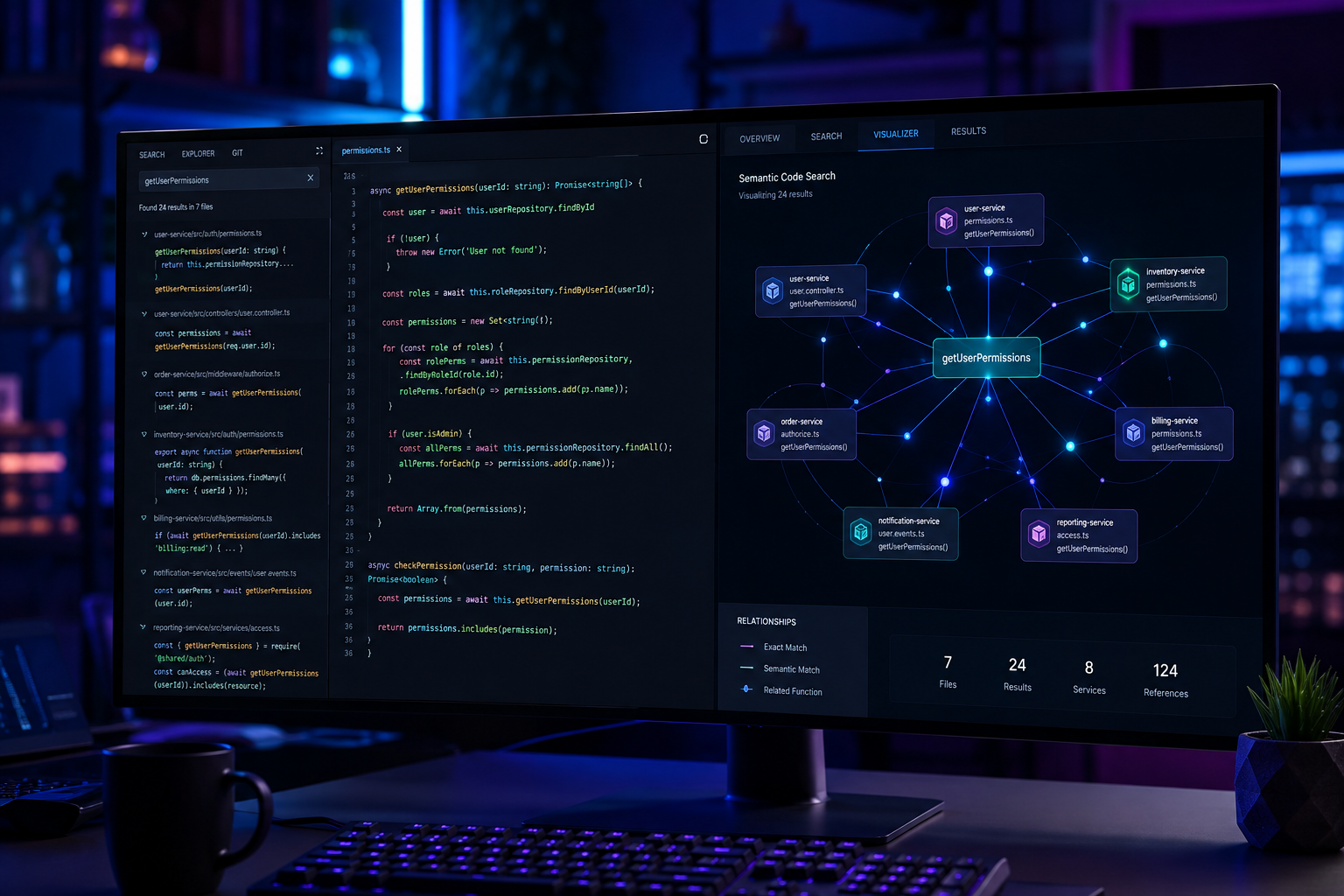
Engineers in enterprises with over 1,000 repositories often spend up to 45% of their working hours trying to locate existing functions, track down cross-service dependencies, and figure out how internal APIs work. Standard keyword searching using local grep or basic GitHub search fails when you do not know the exact variable name or function signature. Setting up AI-powered code search with Sourcegraph solves this problem by combining exact, AST-based symbol matching with deep vector embeddings and large language model context.
Setting up Sourcegraph with AI capability requires three primary execution phases: deploying or connecting to a Sourcegraph instance (Cloud or Self-Hosted), configuring embeddings and repository indexing, and integrating Cody—Sourcegraph's native AI assistant—into your IDE and team workflows.
Here is how to take your development team from fragmented codebase hunting to instant, context-aware AI search.
Understanding Sourcegraph's Dual-Engine Code Search
Traditional search tools index text files by matching literal character sequences. If you search for process_payment(), grep will miss executePayment() or PaymentProcessor.run(), even if they perform the exact same logical operation. Sourcegraph's AI-powered search approaches this challenge by operating on two distinct but connected layers.
The Lexical and Structural Layer (Zoekt & SCIP)
At its foundation, Sourcegraph relies on Zoekt—an ultra-fast trigram search engine written in Go—and SCIP (Source Code Intelligence Protocol). This layer gives you exact regex matching, compiler-accurate 'Go to Definition', and cross-repository reference tracking. It operates with zero hallucination risk because it parses the syntax tree of your code directly.
The Semantic and Vector Layer (Cody AI)
When you overlay AI capability using Cody, Sourcegraph introduces semantic embeddings. It breaks your repositories down into manageable code chunks, passes them through an embedding model, and stores high-dimensional vector representations in a database. When an engineer asks, "Where do we handle expired user sessions in the auth pipeline?", the AI converts that natural language prompt into a vector query, finds the relevant code snippets, and passes those snippets as context to an LLM.
| Feature | Lexical Search (Grep/Zoekt) | Semantic AI Search (Cody/Sourcegraph) |
|---|---|---|
| Search Input | Precise string, regex, or exact symbol | Natural language questions or concepts |
| Code Understanding | Matches literal text characters | Matches intent, logic, and context |
| Execution Speed | Sub-second across millions of lines | Fast vector query + LLM response latency |
| Ideal Use Case | Finding known flags, imports, or variable names | Onboarding, architecture discovery, refactoring |
| Accuracy Risk | Zero false positives, but easily misses intent | High contextual accuracy, minimal risk when grounded |
By unifying these two layers, Sourcegraph prevents the common failure mode of AI coding assistants: hallucinating non-existent functions. The LLM is restricted to reading the exact chunks retrieved by the underlying lexical and semantic indexers.
Prerequisites and Infrastructure Requirements
Before launching your installation, confirm that your environment meets the minimum infrastructure and access requirements.
API and Source Control Permissions
- Source Control Provider: Admin or machine-user access to your code host (GitHub Enterprise, GitLab, Bitbucket, or Azure DevOps) with permissions to create personal access tokens (PATs) and webhooks.
- LLM Provider API Keys: If you are running an Enterprise deployment with custom model providers, you will need API credentials for Anthropic (Claude 3.5 Sonnet is standard), OpenAI, or an AWS Bedrock / Azure OpenAI deployment.
System Resource Allocations (Self-Hosted Installations)
For self-hosted instances running via Docker Compose or Kubernetes (Helm), your host specs dictate how quickly your repos can be indexed.
- Small Teams (Up to 25 developers, < 100 repositories): 8 vCPUs, 32 GB RAM, 250 GB SSD storage.
- Mid-Sized Engineering (25–250 developers, < 500 repositories): 16 vCPUs, 64 GB RAM, 500 GB NVMe storage.
- Enterprise Scale (250+ developers, thousands of repositories): Scaled Kubernetes cluster with dedicated pods for zoekt-indexserver, indexed-search, and vector embedding generators.

Step-by-Step: Setting Up Sourcegraph AI Search
Step 1: Deploy the Sourcegraph Instance
If you use Sourcegraph Cloud, your instance is already managed. However, most enterprise teams requiring strict data governance run Sourcegraph locally or within a private VPC.
To launch a single-node enterprise deployment for testing using Docker, execute the following command:
bash docker run \ --detach \ --publish 7080:7080 \ --publish 12222:12222 \ --name sourcegraph \ --restart always \ --volume ~/.sourcegraph/config:/etc/sourcegraph \ --volume ~/.sourcegraph/data:/var/opt/sourcegraph \ sourcegraph/server:5.3.0
Once the container is running, navigate to http://localhost:7080 in your web browser, set up your primary admin credentials, and access the Site Admin Dashboard.
Step 2: Connect Your Source Control Hosts
Navigate to Site Admin > Code Hosts and select your primary code repository provider.
To connect GitHub Enterprise, generate a GitHub Personal Access Token (PAT) with repo and read:org permissions, then paste the following JSON configuration into the Sourcegraph Code Host editor:
json { "url": "https://github.com", "token": "ghp_yourEnterprisePersonalAccessTokenHere", "orgs": ["YourCompanyOrg"], "repositoryPathPattern": "github.com/{name}" }
Click Save Changes. Sourcegraph will begin cloning and building the initial lexical trigram index for all repositories inside the target organization.
Step 3: Enable Vector Embeddings and Cody AI
To unlock natural language code search, you must enable Cody and configure its embedding pipeline. This is managed via the global site configuration.
- In your Sourcegraph instance, head to Site Admin > Configuration.
- Add or update the cody.enabled and embeddings configurations:
json { "cody.enabled": true, "cody.restrictUsersAccess": false, "embeddings": { "enabled": true, "provider": "anthropic", "model": "claude-3-5-sonnet-20241022", "dimensions": 1536 } }
If you prefer running fully air-gapped environments, point the provider array to your internal Azure OpenAI instance or a private Amazon Bedrock endpoint rather than sending requests out to public SaaS APIs.
Step 4: Configure Repository Embeddings Policies
Indexing entire monorepos or thousands of microservices into vector databases can consume significant GPU or API quota. Create explicit indexing policies so Sourcegraph prioritizes high-impact code:
- Go to Site Admin > Embeddings Jobs.
- Define a repository inclusion rule (for example, targeting production branches like main or master across your active repositories).
- Trigger the initial embedding batch. The process splits source files into functional chunks, passes them to the embedding model, and populates the vector store.
Integrating Cody in Your Local Developer Environment
Once your server has indexed your code, your team needs direct access inside their daily development environments. Installing the Cody extension bridges local code writing with global codebase context.
Setting Up the VS Code Extension
- Open Visual Studio Code, press Ctrl+P (or Cmd+P on macOS), and type ext install sourcegraph.cody-ai.
- Open the Cody extension panel from the left sidebar.
- Click Sign In > Enterprise Instance.
- Enter your company's Sourcegraph URL (for example, https://sourcegraph.yourcompany.com).
- Generate an access token from your Sourcegraph user profile, paste it into VS Code, and hit Enter.
Setting Up JetBrains IDEs (IntelliJ, PyCharm, GoLand)
- Go to Settings/Preferences > Plugins > Marketplace.
- Search for Sourcegraph Cody and click Install.
- Restart your IDE.
- Access Settings > Tools > Sourcegraph and enter your instance URL and user access token.

Advanced Querying Techniques: Moving Beyond Basic Search
Most engineers start by typing natural language questions, but combining natural language with Sourcegraph's structured search filters produces faster, pinpoint accuracy.
Using Search Filters alongside AI
You can scope your searches using explicit parameters directly inside the query bar:
- Repo filtering: repo:^github.com/org/paymentservice$ "webhook listener" limits search strictly to your primary billing microservice.
- Language restrictions: lang:typescript "AuthHeader" isolates TypeScript implementations, ignoring JSON configs or markdown notes.
- File path constraints: file:^src/api/ "rateLimit" restricts vector matching to backend route definitions.
- Boolean logic: (repo:frontend OR repo:mobile) "useSessionToken" aggregates context across two separate platform codebases.
Executing Context-Aware AI Commands
Inside VS Code or JetBrains, select a block of code or reference a file using the @ symbol in the Cody chat window:
- @repo/services/user.go Explain how user permissions are cached and invalidated.
- @file:src/auth.ts Find edge cases where tokens could expire without triggering a refresh.
- /doc automatically generates syntax-accurate docstrings using the architectural context of surrounding files.
Enterprise Governance, Security, and Air-Gapped Setup
For security-sensitive industries like health tech, finance, and enterprise SaaS, exposing intellectual property to third-party AI models is a major dealbreaker. Sourcegraph supports multiple compliance and security configurations.
Zero Data Retention Guarantees
When using Sourcegraph's managed Cody gateway with enterprise contracts, code snippets sent to LLM providers (such as Anthropic or OpenAI) are processed in-memory and are never stored on disk, logged, or used to train public foundation models.
Fully Air-Gapped Deployments
If your compliance requirements demand that zero bytes leave your internal network, set up Sourcegraph locally alongside enterprise-grade infrastructure:
- Route embeddings via private endpoints like AWS Bedrock hosted within your AWS VPC, or Azure OpenAI with private link configurations.
- Deploy local open-source LLMs using engines like vLLM or Ollama hosted on internal GPU clusters.
- Connect Sourcegraph to internal identity providers (Okta, Azure AD, Ping Identity) using SAML 2.0 or OIDC to ensure user permissions mirror source control access lists.
Access Control List (ACL) Syncing
Sourcegraph automatically enforces your code host permissions. If an engineer lacks access to the enterprise payments-vault repository on GitHub, Sourcegraph will suppress search results, symbol definitions, and AI context from that repository when that engineer runs a query.
Troubleshooting Common Setup Issues
Even with straightforward documentation, enterprise configurations occasionally hit roadblocks. Here is how to fix the most common issues.
Issue 1: Embeddings Stuck or Indexing Fails
- Symptom: Sourcegraph dashboard shows 0% embedded or throws worker timeout errors.
- Root Cause: Insufficient memory allocated to the embeddings worker pod, or rate limiting from your LLM provider.
- Fix: Check worker logs via kubectl logs -l app=embeddings. If rate limits are occurring, adjust the batch processing limit in site configuration by lowering embeddings.batchSize from 512 to 128.
Issue 2: Cody Returns Generic Responses Without Code Context
- Symptom: Cody responds like a general chatbot and fails to cite internal files or proprietary functions.
- Root Cause: The workspace is not linked to an active, fully indexed remote repository.
- Fix: Open the Cody extension settings in your IDE and confirm that Context Selection is set to Auto or explicitly includes your remote repository. Ensure the repository name in local git remote -v matches the path indexed on the Sourcegraph server.
Issue 3: High CPU Usage on Code Host During Initial Sync
- Symptom: GitHub Enterprise or GitLab experience performance degradation during initial onboarding.
- Root Cause: Sourcegraph attempting to clone hundreds of repositories simultaneously.
- Fix: Rate-limit clone operations in your Code Host configuration by setting "maxConcurrentClones": 4 in the JSON config panel.
Optimizing AI Code Search for Engineering Teams
Getting full value out of AI code search requires establishing standard team practices. At Saasbonus, we evaluate developer tooling based on real engineering efficiency gains—here is how teams maximize return on investment with AI search:
- Standardize SCIP Indexing in CI/CD: Do not rely solely on basic text indexing. Set up GitHub Actions or GitLab CI jobs to generate SCIP index files on every build. This provides Cody with exact, compiler-grade syntax trees across TypeScript, Go, Java, and Python.
- Establish Common Prompt Templates: Share reusable Cody prompts across your team for common maintenance tasks, such as migration scripts, API upgrades, and security audits.
- Prune Stale Repositories: Keep embedding storage lean by archiving abandoned test repositories and filtering them out of site configuration indexing rules.
When configured correctly, AI-powered code search changes how engineering teams work with large codebases. Instead of relying on tribal knowledge or pinging senior engineers on Slack to locate historical logic, developers can run a single query, get precise context, and keep shipping.