Descript vs Premiere Pro: Which Video Editor Is Faster?
Choosing the right video editor comes down to one fundamental metric: turnaround speed. If your primary goal is to edit talking-head videos, interviews, webinars, or podcasts, Descript is faster than Premiere Pro by a wide margin—often cutting rough-cut production time by 50% to 70%. However, if your projects require multi-camera sync, advanced color grading, frame-accurate pacing, motion graphics, or complex visual effects, Adobe Premiere Pro is faster because its high-performance timeline and GPU-accelerated rendering prevent technical bottlenecks during heavy post-production.
Video editing speed is not just about raw render times or exporting clips. It encompasses your entire workflow: importing media, scrubbing through hours of raw footage, cutting out dead air and mistakes, polishing audio, adding captions, and delivering finished files.
In this comparison, we break down how Descript and Adobe Premiere Pro stack up across every stage of the video editing pipeline so you can choose the software that actually gets your videos published fastest.
Core Paradigms: Script-Based vs. Timeline-Based Editing
To understand why speed differs so dramatically between these two applications, you must look at their foundational architectures.
Descript: The Word Processor for Video
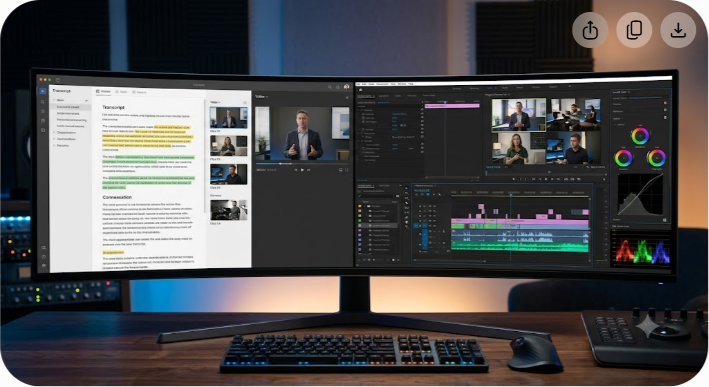
Descript treats your video file like a Google Doc. When you import video or audio media, Descript automatically generates an interactive, speaker-labeled transcript.
- Editing Mechanism: You highlight text and hit delete to trim the corresponding video frames. You drag sentences to reorder clips.
- Speed Advantage: Eliminates the need to manually listen to every second of raw footage just to find a specific sentence or mistake.
- Primary Use Case: Podcasts, screen recordings, online courses, product walkthroughs, and dialogue-driven social content.
Adobe Premiere Pro: The Non-Linear Powerhouse
Adobe Premiere Pro is built around a non-linear timeline (NLE) with unlimited video and audio tracks, multi-cam sequences, and frame-accurate cutting tools.
- Editing Mechanism: You scrub through footage on a visual timeline, set In/Out points, use razor tools, apply ripple edits, and layer assets across tracks.
- Speed Advantage: Unmatched keyboard shortcut customization, hardware acceleration, and seamless integration with After Effects, Photoshop, and Audition.
- Primary Use Case: Commercials, music videos, narrative films, multi-camera shows, and high-production YouTube videos.
While Premiere Pro introduced its own text-based editing panel in recent updates, its core architecture remains tied to multi-track timeline manipulation. Descript, by contrast, was designed from day one around text manipulation.
Head-to-Head Speed Comparison
| Workflow Stage | Descript | Adobe Premiere Pro | Speed Winner |
|---|---|---|---|
| Initial Import & Setup | Quick cloud processing & auto-transcription | Requires manual project setup & media scratch disk config | Descript |
| Rough Cut Creation | Extremely fast (edit via text search & deletion) | Slower manual timeline scrubbing and ripple cutting | Descript |
| Cleaning Filler Words | 1-click automatic removal of "ums", "ahs", and pauses | Manual ripple edits or semi-automated text panel cuts | Descript |
| Audio Enhancement | 1-click Studio Sound AI processing | Advanced Enhance Speech + parametric EQ & mixing controls | Tie (Speed vs. Quality) |
| Fine Assembly & Pacing | Basic timeline; limited frame-accurate adjustments | Precision ripple edit, slip/slide, and keyframing | Premiere Pro |
| Color & Visual FX | Simple canvas presets and basic adjustments | Lumetri Color, adjustment layers, native GPU effects | Premiere Pro |
| Rendering & Export | Cloud-queue processing; variable speed depending on servers | Local GPU acceleration (NVIDIA/AMD/Apple Silicon) | Premiere Pro |
Detailed Workflow Breakdown: Where You Save Time
1. Rough Cut Assembly and Content Trimming
Winner: Descript
Finding the best takes in a 60-minute interview traditionally takes 90 to 120 minutes of manual scrubbing on a timeline. In Descript, the auto-transcript turns that 60-minute recording into a searchable document. You can search for key phrases, highlight bad takes, hit `Backspace`, and watch your video timeline update automatically.
With Descript's AI features (such as Underlord), you can instantly:
- Remove all filler words ("um", "uh", "like") with a single click.
- Detect and eliminate silent gaps over a customizable threshold (e.g., cut all silence longer than 1.5 seconds).
- Generate automated chapters, summaries, and social media clips from highlights.
In Premiere Pro, while text-based editing now allows you to delete source video by selecting transcript text, navigating the dual Source/Program monitors and managing nested sequences takes significantly more manual steps.
2. Fine Editing, Transitions, and Visual Timing
Winner: Premiere Pro
When a video moves past dialogue trimming into visual storytelling, Descript's text-based model becomes restrictive. Precise visual pacing requires frame-by-frame control.
Premiere Pro excels here due to:
- Customizable Hotkeys: Dedicated editors program J-K-L scrubbing, Q/W ripple edits, and Razor tool macros that allow lightning-fast timeline cuts without touching a mouse.
- Multi-Camera Switching: Syncing 4 camera angles in Premiere Pro takes seconds via audio waveform matching. Cutting between angles live using number keys (1, 2, 3) is faster and far smoother than Descript's scene-card system.
- Nesting and Sub-Clips: Organizing massive multi-scene edits with nested sequences keeps projects structured and responsive.
3. Audio Cleanup and Polishing
Winner: Tie
Audio quality directly impacts audience retention. Both platforms feature AI audio tools that transform low-quality mic audio into broadcast-grade sound.
- Descript Studio Sound: One click isolates voices, cancels echo, and removes ambient background noise. It is fast, automated, and produces great results for remote podcast recordings.
- Premiere Pro Enhance Speech: Adobe's AI speech enhancement provides granular control. You can mix the level of original room ambience back into the enhanced speech, preventing the processed audio from sounding overly compressed or robotic.
For sheer speed, Descript wins. For speed without compromising natural audio acoustic depth, Premiere Pro takes the lead.
4. Color Grading and Visual Effects
Winner: Premiere Pro
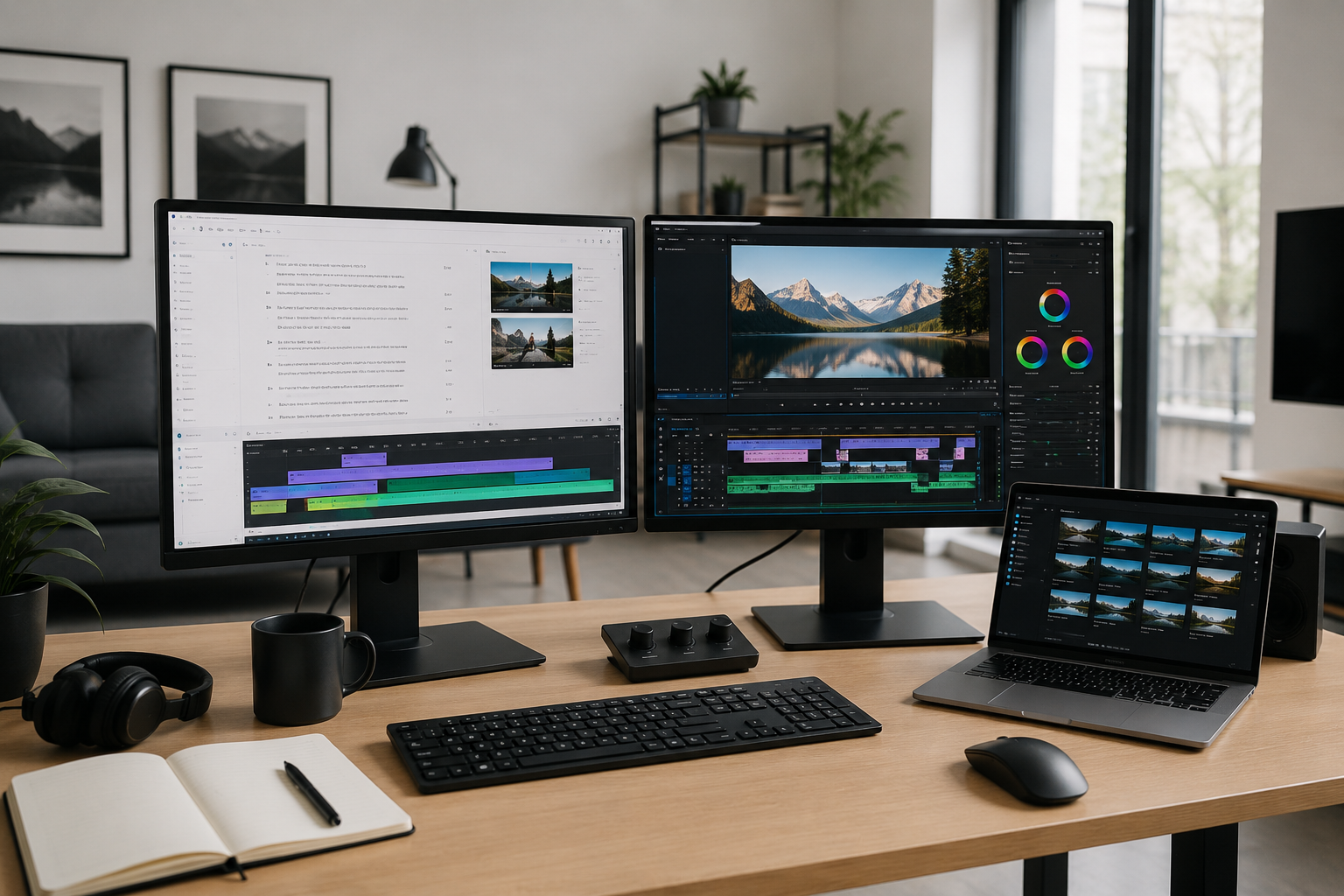
Descript is not designed for advanced color work or visual composition. Adding basic text overlays, cropping frames, or dropping in simple background images is straightforward in Descript, but any detailed color work requires exporting to another editor.
Premiere Pro features the Lumetri Color panel, which supports LUTs, color wheels, curve adjustments, and secondary HSL vectors. Combined with Adobe Firefly generative features (such as Generative Extend for extending video clips), Premiere allows editors to fix visual errors directly inside the project without third-party workarounds.
5. Export Speeds and Rendering Hardware
Winner: Premiere Pro
Render speed depends on how each software utilizes your hardware:
- Descript: Relies heavily on cloud server queues for transcription, AI voice processing (Overdub), and video exports. If your internet connection is slow or Descript's cloud servers are under high load, export queues can stall your workflow.
- Premiere Pro: Utilizes local GPU hardware acceleration (using CUDA or Apple Metal). It encodes H.264, HEVC, and ProRes files using your system's dedicated hardware, delivering consistent render times regardless of cloud connectivity.
The Hybrid Strategy: Combining Descript and Premiere Pro
Many high-volume video production teams do not choose between Descript and Premiere Pro—they use both to form an optimized production pipeline.
Here is how to set up a high-speed hybrid workflow:
- Import and Transcribe in Descript: Load raw interview or podcast footage into Descript.
- First-Pass Content Cut: Run automatic filler word removal, silence removal, and script-based content trimming in Descript. Cut out off-topic dialogue and bad takes.
- Export Timeline File: Export the project as an FCPXML or AAF file from Descript.
- Import into Premiere Pro: Open the XML file inside Premiere Pro. Your transcript cuts instantly map onto a multi-track Premiere timeline.
- Final Polish: Apply color grading, B-roll overlays, custom motion graphics, sound design, and local hardware rendering in Premiere Pro.
This hybrid pipeline leverages Descript for dialogue editing speed while retaining Premiere Pro's visual power.
Real-World Use Cases: Which Tool Fits Your Needs?
Choose Descript If:
- You produce solo podcasts, talking-head YouTube videos, webinars, or video courses.
- You don't have formal video editing training and find traditional multi-track timelines intimidating.
- Your content is driven almost entirely by spoken dialogue rather than complex visual effects.
- You need rapid text transcriptions, AI subtitles, and automated filler word cleanup.
Choose Premiere Pro If:
- You edit multi-camera productions, client commercials, short films, or high-end YouTube documentaries.
- You need deep color grading capabilities and precise audio mixing controls.
- You work with complex camera codecs (RAW, 10-bit 4:2:2, high-frame-rate footage).
- You rely heavily on Adobe Creative Cloud integration with After Effects and Photoshop.
Final Verdict
If speed is measured strictly in minutes spent reaching a completed rough cut, Descript is the faster editor for dialogue-focused content. It eliminates manual timeline searching and automates tedious audio cleanup tasks.
However, if speed is measured in frame-accurate editing, visual flexibility, and reliable local rendering, Adobe Premiere Pro remains the superior tool.
For creator teams scaling production, combining Descript's text-based rough-cutting with Premiere Pro's fine-editing tools provides the ultimate balance of turnaround speed and creative freedom.
At Saasbonus, we analyze and review modern software tools to help you build efficient production tech stacks. Explore our in-depth SaaS reviews, software comparisons, and workflow guides to select the right software subscriptions for your team.