How to Set Up AI Customer Support using Zendesk: 2026 Guide
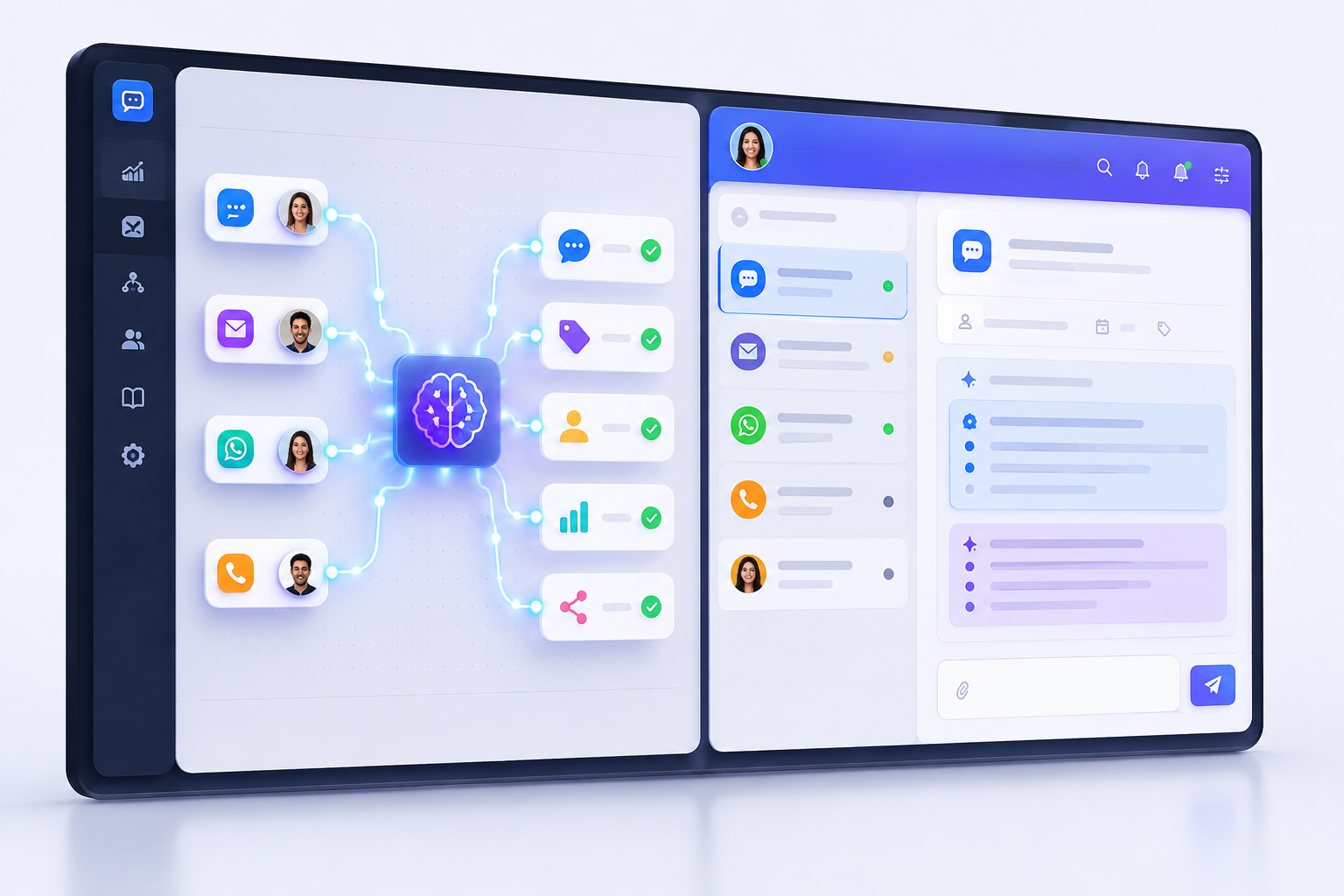
Deploying AI customer support in Zendesk can automate over 60% of tier-one support tickets within 30 days, but doing it incorrectly usually results in hallucinated answers and frustrated users. To set up Zendesk AI successfully, you must configure three core layers: native Zendesk AI intent models, a structured Knowledge Base engine, and custom API-driven AI agents for automated actions.
Most teams fail at AI deployment because they turn on generative auto-replies before organizing their Help Center or defining clear escalation fallback paths. Below is the complete operational blueprint to set up, train, test, and scale AI customer support inside your Zendesk workspace.
Understanding the Zendesk AI Ecosystem
Before toggling switches in your Admin Center, you need to understand how Zendesk structures its AI capabilities. Zendesk does not rely on a single monolithic bot; it uses a multi-layered intelligence system that operates across self-service channels and agent workspaces.
Native Zendesk AI vs. Third-Party Integrations
Zendesk offers native AI capabilities built directly into its platform, powered by machine learning models trained on customer interactions. Additionally, Zendesk supports deep integrations with external AI engines like Intercom's Fin, Ada, Sierra, or custom OpenAI and Anthropic pipelines connected via Zendesk APIs and Sunshine Conversations.
Native Zendesk AI focuses on three operational pillars:
- Autonomous AI Agents (Bots): Public-facing bots that parse user intent, query your Guide articles, synthesize answers using generative AI, and trigger automated API workflows.
- Agent Copilot (Workspace Assist): Internal AI tools that assist human agents by summarizing long email threads, suggesting macros, expanding brief bullet points into polite responses, and auto-detecting ticket intent and sentiment.
- Intelligent Triage: Automated routing rules that tag incoming tickets based on intent, language, and customer sentiment before a human agent ever touches them.
The interaction flow moves through four distinct lifecycle stages:
- Incoming Customer Query: The customer submits a ticket via chat, messaging, or email.
- Intelligent Triage: Zendesk parses the incoming message to assign intent, language, and sentiment tags automatically.
- Bot Evaluation: The Zendesk AI Agent searches your knowledge base using Generative Answers to resolve the query instantly.
- Resolution or Escalation: If resolved, the ticket closes. If unhandled, the system escalates the thread to a human agent, supplying AI Copilot suggestions to speed up handle time.
Pricing Models and Usage Limits
Understanding the cost structure prevents budget surprises as your ticket volume scales:
- Zendesk AI Add-On: Charged per agent seat per month (typically starting around $50/agent/month on Suite Team, Growth, Professional, or Enterprise tiers).
- Automated Resolutions (Usage Billing): Zendesk's native AI agents charge based on Automated Resolutions—defined as a customer interaction successfully resolved by the AI without human intervention. Standard plans usually include a baseline allocation of resolutions, after which additional usage costs roughly $1.50 to $2.00 per successful resolution.
- Third-Party AI Integration Costs: If you connect external LLM wrappers via API, you bypass native automated resolution fees, paying instead for raw API token costs plus the third-party middleware subscription fee.
Prerequisites Before Configuring Zendesk AI
Turning on generative AI over an unorganized Help Center is the fastest way to serve incorrect information to your customers. Complete these prerequisites before modifying your Admin Center settings.
1. Help Center Audit and Knowledge Base Clean Up
Generative AI models synthesize answers from your published Zendesk Guide articles. If your articles contain outdated pricing, conflicting refund policies, or redundant step-by-step guides, your AI agent will output contradictory answers.
- Delete or Archive Duplicate Articles: Ensure only one authoritative article exists for every core workflow (e.g., 'How to Request a Refund').
- Use Clear Formatting: Structure articles with standard H2/H3 headers, short paragraphs, and explicit bullet points. AI scrapers extract context far more accurately from clean Markdown or clean HTML formatting.
- Fill Knowledge Gaps: Review the last 90 days of human agent support tickets. Identify top-volume macro usages and write 500-word Help Center articles for any topic that lacks public documentation.
2. Role Permissions and Access Control
Ensure you have Zendesk Admin privileges. Configuring AI models, routing triggers, and API tokens requires top-level workspace permissions. Account Owners should grant Admin status to the Lead Support Operations Specialist before starting setup.
Step-by-Step Setup Guide: Building Your AI Agent
Follow this sequence to build, train, and launch your automated Zendesk AI support agent from scratch.
Step 1: Enable Zendesk AI in Admin Center
To activate native AI capabilities across your organization, follow these simple steps:
- Log into your Zendesk instance as an Administrator.
- Navigate to the Admin Center by clicking the gear icon or selecting Admin Center from the top product switcher.
- In the left navigation sidebar, click on AI and select Overview.
- Click Turn on AI features to activate native Intent Detection, Generative Search, and Agent Assistance.
- Select your active support channels (such as Web Messaging or Email) where these capabilities should apply.
Step 2: Build a New Messaging Bot
- In Admin Center, navigate to Channels > Bots and messaging > Bots.
- Click Create bot at the top right of the screen.
- Name your bot logically (e.g., SaaSBonus Assistant) and select its primary operating language (e.g., English).
- Assign the bot to your active messaging channels (Web Widget, Mobile SDK, WhatsApp, or Facebook Messenger).
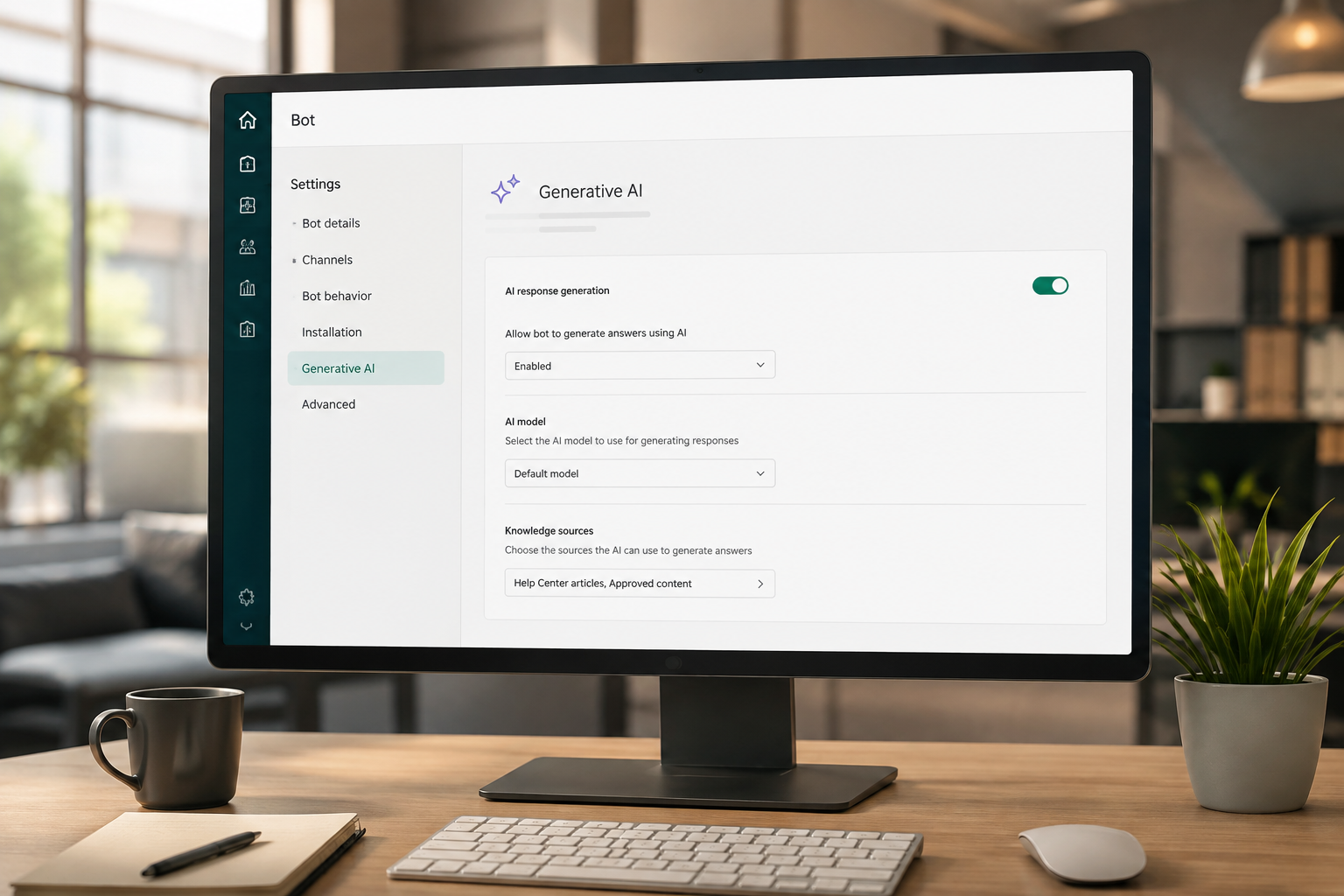
Step 3: Configure Generative Answers (AI Knowledge Search)
Generative Answers allows the bot to scan your Zendesk Guide Help Center dynamically, rephrasing relevant sections into a direct answer instead of simply serving a link.
- Inside your Bot settings, open the Generative AI tab.
- Toggle Generative replies to On.
- Select your brand's Zendesk Guide as the primary knowledge source.
- Define Content Restrictions: Restrict searching to specific article labels (e.g., public-docs, verified-ai) if you have internal-only articles published in your Help Center.
- Customize the Persona and Tone: Select between Professional, Friendly, or Conversational depending on your brand voice.
Step 4: Create Custom Answers and Intent Flows
While Generative Answers handles broad informational queries, high-stakes tasks like account cancellations, billing updates, or bug reports require deterministic, step-by-step logic flows.
- Click on the Answers tab within your Bot editor and select Add answer.
- Name the answer (e.g., Cancel Subscription Flow).
- Input 5 to 10 sample intent phrases that customers might type, such as:
- I want to cancel my account
- Where do I terminate my subscription?
- How do I stop auto-renew?
- Build the step-by-step flow using visual conversation cards:
- Send message: Present explicit conditions or warning steps.
- Present options: Provide interactive buttons (e.g., Pause Plan, Talk to Sales, Confirm Cancellation).
- Make API call: Fetch user data directly from your SaaS platform database (e.g., verify current subscription status).
- Transfer to agent: Route to human queues if the user insists on human assistance.
Advanced AI Configuration: Intelligent Triage and Routing
AI support extends beyond chatting with end-users. You can leverage Zendesk's machine-learning algorithms to triage behind-the-scenes incoming email tickets automatically.
Automating Intent, Language, and Sentiment Tags
When a user sends an email to your support desk, Intelligent Triage parses the text against pre-trained industry models.
- In Admin Center, go to Objects and rules > Business rules > Intelligent triage.
- Enable automatic enrichment. Zendesk will populate three hidden system ticket fields on creation:
- Intent: Automatically categorized (e.g., billing_dispute, password_reset, feature_request).
- Language: Detected language of the sender.
- Sentiment: Classified as Very Positive, Positive, Neutral, Negative, or Very Negative.
Setting Up AI-Driven Triggers and Escalations
Now, build an automated Zendesk Trigger using these AI-populated fields to prioritize churn risks.
- Condition 1: System Intent equals billing_dispute.
- Condition 2: System Sentiment equals Very Negative.
- Condition 3: Ticket Status equals New.
- Action 1: Set Priority to Urgent.
- Action 2: Assignee Group set to Tier 3 Support Escalations.
- Action 3: Send notification to your #urgent-support-billing Slack channel.

This single trigger eliminates the delay of a customer waiting hours for an initial response when they are actively frustrated over a billing error.
Setting Up Agent Copilot (Internal Support Team Efficiency)
Your human support team handles complex edge cases that the AI bot cannot resolve. Agent Copilot uses AI within the Zendesk Agent Workspace to drastically cut down handle time.
Enabling Workspace AI Tools
- In Admin Center, go to Workspaces > Agent workspace.
- Enable Context Panel Generative AI Tools.
- Turn on the following three core functions:
- Summarize: Collapses a 15-reply email chain into a three-bullet executive summary at the top of the ticket.
- Expand / Tone adjustment: Allows agents to write 3 shorthand words (e.g., 'refund issued today'), highlight them, and click Expand to turn them into a complete, polite customer email.
- Suggested Macros: Reads the ticket context and suggests the precise macro answer with one-click applying.
When an agent enters brief shorthand notes like 'processed refund 3 days back check bank', clicking the Expand button automatically converts that fragment into clear customer copy: 'Hello! I have reviewed your account and can confirm that your refund was processed three business days ago. Please check with your banking institution, as funds typically post within 3–5 business days.'
Native Zendesk AI vs. External AI Engines (Fin, Ada, Custom LLMs)
Depending on your technical stack, native Zendesk AI might not be your only option. Many SaaS companies pair Zendesk's ticketing backend with specialized third-party conversational AI layers.
| Feature / Metric | Native Zendesk AI | Intercom Fin (Integrated) | Custom OpenAI / Sunshine API |
|---|---|---|---|
| Primary Strength | Native integration, zero custom code needed | High initial resolution rate out-of-the-box | Unlimited flexibility, custom backend actions |
| Setup Difficulty | Low (1-3 hours) | Medium (Connect via Zendesk App Store) | High (Requires engineering resources) |
| Cost Structure | Included base tiers + Automated Resolution fees | $0.99 per resolution | Raw API token costs ($0.01-$0.10/ticket) |
| Hallucination Control | High (Strictly constrained to Help Center) | High (Strict semantic search validation) | Medium (Depends on custom prompt engineering) |
| Deep SaaS Actions | Requires Zendesk Flow Builder Webhooks | Requires custom integrations | Full freedom via direct API endpoints |
If you want an immediate, no-code deployment, stick with Native Zendesk AI. If your engineering team has built custom internal tools and wants total control over model prompts and system context, build a Custom Sunshine API Agent that writes back into the Zendesk Ticket API.
Common Pitfalls and How to Avoid Them
Deploying AI support without precautions can create new problems. Here are three common failure modes and their solutions.
1. The Endless Loop Trap (No Clear Escalation Path)
The Mistake: Users get stuck in a loop where the bot repeatedly offers unhelpful articles without letting them speak to a human.
The Fix: Always include a persistent fallback option. Configure your bot flows so that after two unsuccessful attempts at resolving an answer, the bot automatically offers a 'Connect with Human Support' button that creates an active ticket without asking further questions.
2. Training on Unverified Internal Docs
The Mistake: Pointing your AI engine at internal Notion databases, legacy Google Docs, or staging documentation that contains outdated product specs.
The Fix: Isolate your AI training knowledge base exclusively to your published, public-facing Zendesk Guide articles. Implement a mandatory quarterly content review workflow for your technical writers.
3. Ignoring Unresolved AI Analytics
The Mistake: Enabling the AI agent and never reviewing its drop-off metrics or unhandled user queries.
The Fix: Review your Zendesk Explore AI Analytics Dashboard every Monday morning. Filter specifically by Unresolved Searches to identify recurring questions your bot failed to answer, then write new Guide articles to plug those exact content gaps.
Measuring Success: Key KPIs for AI Customer Support
To justify the ROI of your Zendesk AI implementation, track these four core metrics in Zendesk Explore:
- Automated Deflection Rate: Calculated as (Tickets Resolved by Bot without Human Intervention) / (Total Incoming Messaging Conversations) * 100. Aim for 45% to 65% in standard B2B/B2C SaaS environments.
- First Contact Resolution (FCR): Monitor whether tickets escalated by the AI to human agents are resolved in a single reply due to the AI's contextual triage summary.
- Average Handle Time (AHT): Human agents using Agent Copilot macro suggestions and automatic thread summaries should see a 20% to 35% reduction in total time spent per ticket.
- CSAT (Customer Satisfaction Score): Measure CSAT specifically for AI-resolved conversations versus human-resolved conversations. If your AI CSAT drops below 80%, refine your persona tone or loosen bot constraints to escalate tickets sooner.
Maximizing Your SaaS Stack Beyond Zendesk
Setting up AI customer support in Zendesk is one of the highest-leverage operational improvements a growing software business can execute. By filtering out repetitive tier-one inquiries like password resets and basic billing questions, your human team can focus on high-touch enterprise accounts and complex customer retention issues.
If you are evaluating customer support tools, usage-based billing engines, or AI development stacks for your software platform, explore independent software teardowns, head-to-head comparisons, and software savings on Saasbonus. We help engineering and operations leaders select, integrate, and optimize the best SaaS tools for their growth stage.