How to Use Google NotebookLM: A Beginner's Guide for Research and Work
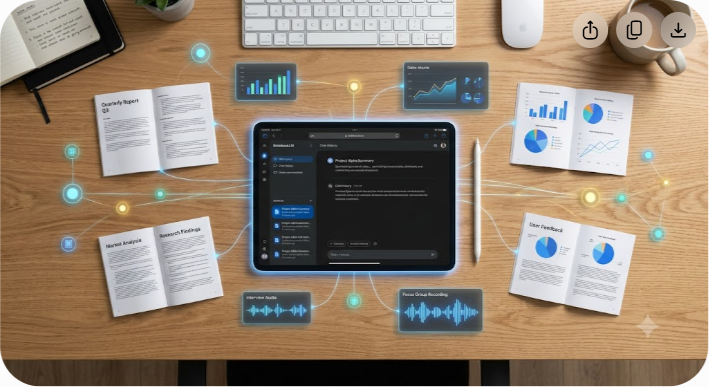
The 2:00 PM Tab Explosion
It usually happens around 2:00 PM on a Tuesday. Your browser window has twenty-seven open tabs. Four of them are 80-page PDF reports you swore you would read last week, five are industry whitepapers, six are Google Docs filled with half-formed project outlines, and the rest are scattered articles you bookmarked during a midnight research spiral.
Your brain feels fried. You need to synthesize a strategic memo by 5:00 PM, but finding that one specific stat about customer acquisition cost requires clicking through dozens of headers and skimming thousands of lines of dense prose.
Standard AI chatbots like ChatGPT or Claude can help, but they present a massive risk: hallucinations. When you paste an open-ended prompt into a standard chatbot, it draws from the entire internet. Sometimes it gives you brilliant insights; other times it confidently fabricates statistics, misattributes quotes, or blends distinct source files into a fictional soup.
That is precisely where Google NotebookLM steps in.
Instead of searching the broad web, NotebookLM acts as an AI research assistant grounded strictly in the materials you provide. You hand it your specific documents, and it builds a personalized language model trained exclusively on your data. Every answer, summary, and outline it generates links back to direct citations in your original files.
Whether you are an enterprise product manager analyzing user feedback, a graduate student sifting through academic papers, or an independent SaaS reviewer organizing vendor documentation, mastering NotebookLM will change how you work. Let us dive into how to set up, navigate, and get the most out of this tool.
What Makes Google NotebookLM Different?
Most AI tools operate like open-book exams where the textbook covers the entire public internet. Google NotebookLM operates like a closed-book exam where you choose the exact textbooks on the desk.
Powered by Google's Gemini family of models, NotebookLM uses a technique called Retrieval-Augmented Generation (RAG). When you submit a query, the model does not search its general training data. It searches the specific documents you uploaded to that notebook, pulls out the most relevant passages, and constructs an answer based solely on those text chunks.
Core Advantages of Grounded AI
- Zero Internet Drift: If a fact is not in your uploaded sources, NotebookLM will explicitly tell you it cannot find the information rather than making something up.
- Clickable Inline Citations: Every claim, bullet point, or summary paragraph includes bracketed numbers. Click one, and NotebookLM opens the exact source document on the left side of your screen, highlighting the original text.
- Source Privacy: Your uploaded documents and queries are kept private to your workspace and are not used to train Google's public AI models.
- Multimodal Input: You are not restricted to plain text. You can feed it PDFs, Google Docs, Google Slides, web links, YouTube video URLs, pasted text, and Markdown files.
At SaaSbonus, where our team tests hundreds of software platforms, we regularly review complex technical documentation and pricing matrices. Grounding an AI tool in raw vendor documentation allows us to compare feature sets rapidly without double-checking every single feature claim against internet noise.
Getting Started: Setting Up Your First Workspace
Starting with NotebookLM takes less than two minutes. The tool is free and accessible to anyone with a personal Google Account or an enterprise Google Workspace account.
Step 1: Access the Platform
Head over to notebooklm.google.com. Log in using your primary Google account. You will land on the main dashboard displaying your existing notebooks alongside template samples provided by Google.
Step 2: Create a Notebook
Click the New Notebook button in the top left corner. Think of a notebook as a dedicated project folder. If you are researching enterprise CRM pricing, name the notebook "Enterprise CRM Benchmarks." If you are preparing for a quarterly board meeting, name it "Q3 Board Deck Prep."
Keep your projects isolated. Do not dump every file you own into a single general notebook. The smaller and more focused your source pool, the sharper and more accurate the AI's responses will be.
Uploading and Managing Sources
Once inside your new notebook, you will see a prompt to add sources. A single notebook can hold up to 50 individual sources, and each source can contain up to 500,000 words.
Supported Source Formats
- Google Drive Files: Direct connection to your Google Docs and Google Slides.
- PDF Files: Digital reports, academic papers, eBooks, or exported slide decks.
- Text & Markdown: Plain text (.txt) files, code snippets, or notes from Markdown apps like Obsidian.
- Web Links: Direct URLs to online articles, documentation pages, or press releases.
- YouTube URLs: Link public YouTube videos (such as product demos, lectures, or interviews), and NotebookLM will process the transcript.
- Pasted Text: Copied snippets from emails, Slack threads, or physical document scans.
Best Practices for Source Preparation
While NotebookLM is adept at parsing messy documents, spending thirty seconds preparing your files makes a big difference:
- Use Clean Headings: Clear headings in Google Docs or PDFs help the AI understand document structure and context quickly.
- Check OCR on Scanned PDFs: If you upload a PDF created from a physical scanner, make sure the text is selectable. Image-only PDFs without searchable text will not read properly.
- Strip Out Unrelated Content: When linking web URLs, select pages that focus purely on your research topic to avoid bringing in clutter like site navigation menus or advertorial sidebars.
Navigating the Interface

The NotebookLM interface uses a simple, three-panel layout designed to keep your original materials, AI chat, and final notes organized side-by-side.
+-----------------------+-----------------------+-----------------------+
| SOURCE PANEL | CHAT PANEL | STUDIO PANEL |
| | | |
| [x] Q3_Report.pdf | User: What were our | [Saved Note 1] |
| [x] Market_Trends.doc | Q3 software costs? | Key Takeaways |
| [ ] Competitor.url | | - Cost rose 14% |
| | AI: Software costs | - Renewal in Nov |
| [Add Sources Button] | increased 14% [1]. | | +-----------------------+-----------------------+-----------------------+
1. The Left Panel: Source Management
This column lists every document, link, and transcript you have added. Each source has a checkbox next to it. Checking or unchecking a box toggles that specific file on or off for query responses. If you want to ask a question using only two out of your ten uploaded files, simply uncheck the other eight.
2. The Center Panel: The AI Chat Window
This is where you interact directly with the model. At the bottom, you will find the prompt bar. When you ask a question, NotebookLM responds here, complete with superscript citations. Above the chat bar, NotebookLM automatically generates quick-suggested prompts based on the documents you uploaded.
3. The Right Panel: Studio & Saved Notes
This space serves as your scratchpad. Whenever NotebookLM generates a response you want to keep, click the Pin button to save it as a note in the Studio panel. You can also write manual notes, edit saved AI summaries, and export your collected notes straight into a Google Doc.
Master Prompts and Workflows for Work & Research
Now that the workspace is set up, how do you put it to work? Here are four practical workflows for common research and workplace tasks.
Workflow 1: Rapid Executive Summarization
Imagine you just received three competing vendor proposals, each running over 40 pages. You need to present a side-by-side comparison to your department head in one hour.
- Upload all three vendor PDF proposals into a new notebook.
- Ensure all three sources are checked in the left panel.
- Enter the following prompt in the chat:
"Create a structured comparison table comparing Vendor A, Vendor B, and Vendor C across four categories: 1. Annual SaaS Subscription Cost, 2. Onboarding Timeline, 3. Included Security Certifications (SOC 2, ISO 27001), and 4. Support SLAs. Use precise numbers cited directly from the sources."
Within seconds, NotebookLM formats a clear table. Hover over any cited number to double-check the fine print in the vendor's actual proposal.
Workflow 2: Turning Dense Research Papers into Study Guides
If you are digesting complex academic literature, technical whitepapers, or legal briefs, use NotebookLM to generate structured study materials.
- Upload your source files.
- In the Chat panel, click Briefing Doc or enter this prompt:
"Synthesize these papers into a comprehensive study guide. Include: 1. Core Thesis, 2. Key Methodologies Used, 3. Major Findings with Numerical Data, 4. Identified Limitations, and 5. A Glossary of the 10 most critical technical terms defined in the text."
- Click Pin to Note on the output. You now have a reference guide pinned to your right panel that you can reference throughout your project.
Workflow 3: Meeting Transcript Analysis
If you record user interviews, team syncs, or sales calls, export the transcript files into NotebookLM.
- Upload transcripts from Zoom, Google Meet, or Otter.ai.
- Type the following prompt:
"Extract all explicit action items from these meeting transcripts. Organize them by owner, deadline (if mentioned), and priority level. Highlight any recurring customer pain points mentioned across more than two separate calls."
This turns raw audio transcripts into actionable strategy points in seconds.
Workflow 4: Content Creation & Drafting
Writer's block usually comes from staring at a blank screen without structured inputs. With NotebookLM, your research is the input.
- Select the relevant research papers, strategy docs, and notes.
- Input this prompt:
"Based exclusively on the uploaded customer feedback files, outline a detailed blog post addressing the top three challenges our users face with legacy software migration. Include real quotes from the transcripts to support each point."
- Take the generated outline, pin it to your Studio panel, and use it as your draft foundation.
Unleashing Audio Overviews: The AI Podcast Feature
One of the most impressive features in Google NotebookLM is Audio Overview. With a single click, NotebookLM transforms your uploaded documents into a surprisingly natural, two-host audio conversation (a male and female voice) discussing, debating, and explaining your source materials.
It does not simply read text aloud monotonically. The AI hosts speak with organic pacing, use natural conversational transitions, express enthusiasm, use verbal pauses ("uh", "you know"), and draw connections between separate sources.
+------------------------------------------------------------------+
| AUDIO OVERVIEW FLOW |
| |

| [ Upload PDFs / Docs ] |
| ? |
| ? |
| [ Click 'Generate Audio Overview' ] |
| ? |
| ? |
| [ NotebookLM Synthesizes Core Themes ] |
| ? |
| ? |
| [ 10-15 Min Deep-Dive Podcast Generated (Download / Share) ] | +------------------------------------------------------------------+
How to Generate an Audio Overview
- Open your workspace with your uploaded files.
- Look at the top right corner of the Studio panel and find the Audio Overview card.
- Click Generate.
- Wait 2 to 5 minutes while the system processes your sources and drafts the spoken dialogue.
- Press play to listen directly in your browser, or click the download icon to save the audio file as an .m4a file for on-the-go listening during a commute or workout.
Customizing Your Audio Overview
You can guide what the audio hosts focus on before hitting generate. Click the Customize button on the Audio Overview card and enter specific instructions:
- "Focus primarily on the financial risk factors outlined in Section 3 of the report, and explain them as if speaking to a non-technical audience."
- "Debate the pros and cons of the proposed SaaS software migration outlined in the documents, weighing cost against speed."
Listening to an Audio Overview is an effective way to absorb complex materials before jumping deep into manual text edits.
NotebookLM vs. ChatGPT vs. Gemini: When to Use Which?
It is easy to get confused by the growing list of AI tools available today. Knowing when to use NotebookLM versus a standard large language model like ChatGPT or the general Gemini app will save you hours of trial and error.
| Feature / Use Case | Google NotebookLM | Standard AI Chatbot (ChatGPT/Gemini) |
|---|---|---|
| Primary Data Source | User-uploaded files only (Grounded) | Public Internet / General LLM knowledge |
| Hallucination Risk | Near Zero (Stays within context) | Moderate to High |
| Citation System | Direct inline citations with text highlights | Broad web search links (often vague) |
| Input Limits | Up to 50 sources, 500k words each | Context window limits vary by plan |
| Audio Generation | Built-in 2-host conversational podcast | Text-to-speech reading |
| Best For... | Deep research, document analysis, study guides | Creative brainstorming, general code, open Q&A |
If you need creative inspiration, code generation, or general internet search, use ChatGPT or Gemini. If you need to analyze specific files without hallucinations or misquotes, use NotebookLM.
At SaaSbonus, we use general LLMs for brainstorming headline ideas, but rely on NotebookLM when cross-referencing technical API specifications and enterprise feature matrices.
Advanced Tips and Hidden Features
To move beyond basic usage and get maximum productivity out of NotebookLM, integrate these pro tips into your daily workflow.
1. Combining Multiple Source Types for Contextual Synthesis
Do not limit yourself to just one file type. Upload a 50-page PDF report alongside a 10-minute YouTube video transcript and a raw customer email list. NotebookLM will cross-reference the structured quantitative data from the PDF with the qualitative conversational data from the video and emails seamlessly.
2. Crafting Notes and Building Master Documents
As you chat with the model, click the Pin icon on helpful outputs. Once you have saved five or six notes in your right-hand Studio panel, select them all using the checkboxes and click Combine Notes. NotebookLM will merge those individual snippets into a unified, coherent synthesis document.
3. Shareable Workspace Collaboration
Working with a research partner or team? Click the Share button in the top right corner of your notebook. You can invite colleagues via email and grant them either Viewer or Editor access, allowing your whole team to query the same source pool simultaneously.
4. Customizing the Notebook Guide
Click on Notebook Guide inside the central chat window to access quick one-click transformations:
- FAQ Generator: Creates a structured Q&A document based on your materials.
- Timeline Creator: Extracts dates, historical sequences, and project milestones into chronological order.
- Briefing Document: Builds a high-level executive summary detailing key concepts and conclusions.
Common Pitfalls and How to Avoid Them
While NotebookLM is a powerful tool, understanding its limitations ensures you won't get stuck.
Pitfall 1: Overloading Single Notebooks with Disjointed Topics
If you upload documents about enterprise software purchasing, home gardening tips, and personal tax returns into one notebook, the AI will pull context across all three when answering queries. Keep each notebook focused on a single project or topic.
Pitfall 2: Expecting Real-Time Internet Browsing
NotebookLM is deliberately designed not to search the live web freely during chat. If you ask, "What is the current stock price of Google today?" and that information isn't in your uploaded sources, it won't be able to tell you. If you need live internet data, save the web page as a PDF or link the URL directly into your sources panel.
Pitfall 3: Ignoring Citation Numbering
NotebookLM is exceptionally accurate, but human review remains essential. Always click the numbered citation brackets on critical stats to verify that the context in the original text matches your intended usage before publishing reports or sending memos to management.
Step-by-Step Practical Scenario: Analyzing a Software Vendor Matrix
Let us tie everything together with a practical scenario. Suppose you are tasked with selecting a new project management platform for your 50-person agency.
- Gather Materials: Download the pricing PDFs, feature specs, and security compliance sheets for Option A, Option B, and Option C.
- Create Notebook: Open NotebookLM, title the project "PM Tool Evaluation 2026," and upload the files.
- Run Initial Analysis: Click Briefing Doc to read an immediate high-level summary of all three tools.
- Query Specific Requirements: Type: "Which tool offers native time tracking without requiring a third-party integration, and what are the specific user tier pricing breakdown for 50 seats?"
- Review Citations: Click the inline citations to view the exact pricing table inside Option B's PDF guide.
- Generate Audio Summary: Hit Generate Audio Overview and listen to a 10-minute conversational podcast discussing the trade-offs between the three tools while taking your afternoon walk.
- Export Recommendations: Select your saved chat answers in the Studio panel, click Export to Google Docs, and send your structured executive memo to your team leader.
Tasks that used to consume an entire work week can now be completed accurately in an afternoon.
Final Thoughts
Information overload isn't going away. The volume of reports, documents, links, and transcripts we handle daily will only grow. The key to staying productive isn't reading faster—it's utilizing smart tools to synthesize data accurately without losing control over source material.
Google NotebookLM provides a simple, secure, and grounded approach to AI-assisted research. By anchoring AI intelligence directly to your curated files, it delivers accurate, cited answers you can trust for critical decisions.