Self-Host Ollama: Local LLM Setup Guide for Developers
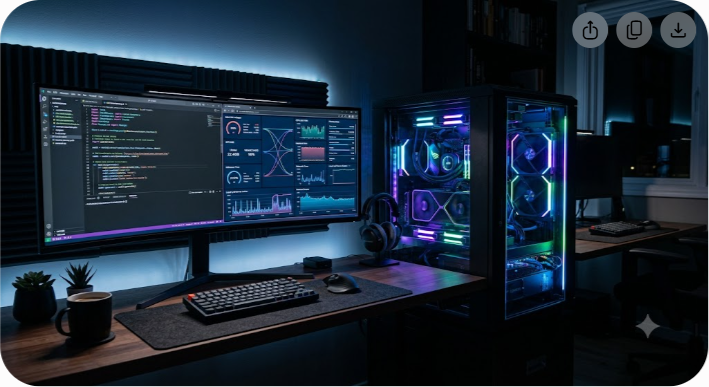
Self-hosting Ollama reduces cloud LLM API bills to zero while giving engineering teams complete data privacy and sub-50 millisecond inference latencies on local hardware. Rather than routing sensitive prompts through third-party HTTP endpoints, self-hosting allows developers to execute models like Llama 3.3, Mistral, and DeepSeek-R1 directly on workstation hardware or private cloud infrastructure.
Ollama abstracts the underlying C++ inference engines (like llama.cpp) into a background service with a clean, Docker-like Command Line Interface (CLI) and an OpenAI-compatible REST API. Whether you are building an offline Retrieval-Augmented Generation (RAG) system, testing autonomous coding agents, or auditing prompt flows without data leakage, hosting Ollama locally is the most dependable foundation for modern AI engineering.
In this guide, you will master the end-to-end process of setting up, configuring, and scaling Ollama—from local workstation installations to production-grade GPU container deployments.
Why Developers Self-Host Ollama for Local AI Development
Routing every application prompt through commercial LLM providers introduces three persistent engineering hurdles: recurring variable costs, unpredictable network latency, and data compliance risks. Self-hosting Ollama resolves all three by executing model weights directly on your local system memory and unified GPU architectures.
1. Absolute Data Privacy and Zero API Billing
Commercial AI APIs charge on a per-token basis. For high-throughput applications—such as continuous integration log analysis, codebase indexing, or real-time agent loops—API expenses scale exponentially. Ollama eliminates token pricing entirely; your only cost is the electricity required to power your local compute. Furthermore, code snippets, enterprise telemetry, and proprietary customer data never leave your local network, ensuring instant compliance with strict data security standards like HIPAA and GDPR.
2. Standardized OpenAI-Compatible API Endpoints
Replacing SaaS API infrastructure often requires rewriting application connectivity layers. Ollama solves this by exposing an API that mirrors standard REST schemas. If your existing code connects to OpenAI via Python, TypeScript, or Go SDKs, you can retarget your base URL to your self-hosted Ollama instance (http://localhost:11434/v1) by changing just two lines of configuration code.
3. Lightweight Model Management with Docker-Like Semantics
Managing raw GGUF weight files, context window buffers, and quantization parameters manually can be tedious. Ollama introduces a declarative syntax known as a Modelfile (conceptually identical to a Dockerfile). You can pull, push, customize, and version control language models using straightforward commands like ollama run and ollama pull.
System Requirements and Hardware Sizing
Before installing Ollama, you must evaluate your system's hardware parameters. Unlike traditional web applications that consume CPU and RAM evenly, local LLMs depend primarily on high-bandwidth VRAM (Video RAM) and unified memory bandwidth.
Minimum vs Recommended Hardware Specs
| Hardware Component | Minimum Requirement (7B Models) | Recommended Production (14B to 70B Models) |
|---|---|---|
| GPU VRAM | 8 GB VRAM (NVIDIA RTX 3060 / Apple M1) | 24 GB to 48 GB+ VRAM (NVIDIA RTX 4090 / A10G / Apple M3 Max) |
| System RAM | 16 GB DDR4 / DDR5 | 64 GB+ High-Bandwidth Unified RAM |
| Storage Space | 20 GB Free NVMe SSD | 250 GB+ High-Speed NVMe PCIe 4.0 SSD |
| Processor (CPU) | Intel Core i5 / AMD Ryzen 5 (AVX2 supported) | Apple Silicon (M-Series) or modern Intel Xeon / AMD EPYC |
| Operating System | macOS 12+, Ubuntu 22.04 LTS, Windows 11 | Ubuntu 22.04 / 24.04 LTS or macOS Sonoma |
Quantization and VRAM Calculation Rules
Large language model weights are stored as parameter matrices. The precision of these weights (e.g., 16-bit floating point vs 4-bit integer quantization) determines how much memory a model occupies in VRAM:
- FP16 (16-bit precision): Requires roughly 2 GB of VRAM per 1 billion parameters.
- INT4 (4-bit quantization, default in Ollama): Requires roughly 0.5 GB to 0.75 GB of VRAM per 1 billion parameters.
To calculate required memory, use this formula:
Required VRAM = (Parameter Count in Billions * Precision Factor) + 2 GB Overhead
For example, running a 8-billion parameter model (llama3.1:8b) at default 4-bit quantization requires approximately (8 * 0.65) + 2 = 7.2 GB of available VRAM. Trying to fit a model into insufficient VRAM forces Ollama to offload execution layers to system CPU RAM, dropping generation throughput from 60 tokens per second down to 4 tokens per second.
Installing Ollama on Bare Metal (macOS, Linux, Windows)
Setting up Ollama directly on host hardware offers the lowest latency and direct access to native GPU drivers.
Installing on macOS
macOS benefits from Apple Silicon unified memory architecture, allowing the CPU and GPU to share up to 128 GB of ultra-fast memory. Download the official macOS zip binary, extract it, and launch the application. Alternatively, install it via Homebrew:
bash brew install ollama
Start the background daemon process:
bash ollama serve
Installing on Linux (Ubuntu/Debian/RHEL)
Linux is the industry standard for dedicated self-hosted server deployments. Execute the official installation shell script:
bash curl -fsSL https://ollama.com/install.sh | sh
The installation script creates a system user named ollama, installs the binary to /usr/local/bin, and registers a systemd service (ollama.service). You can verify that the service is running with this command:
bash systemctl status ollama
Installing on Windows
On Windows 11 or Windows Server 2022, download the official setup installer (OllamaSetup.exe). The installer automatically registers CUDA drivers if an NVIDIA GPU is detected. For CLI-based terminal workflows, install Ollama using Windows Package Manager (winget):
powershell winget install ollama
Running Your First Local LLM
Once the Ollama daemon is active, running an inference session requires a single terminal command. Ollama fetches model weights from its public registry, loads the model layers into memory, and launches an interactive chat prompt.
bash ollama run llama3.1
When executing ollama run, the system carries out four distinct steps:
- Queries the registry for llama3.1:latest (8B parameters at 4-bit quantization).
- Downloads the model manifest and weight layers to local disk storage (~/.ollama/models).
- Verifies system VRAM capacity and maps model layers directly to the GPU.
- Opens an interactive command prompt for prompt submission.
To list all locally stored models on your filesystem, run:
bash ollama list
To inspect internal architecture details, tensor types, context sizes, and tokenization settings for a specific model, run:
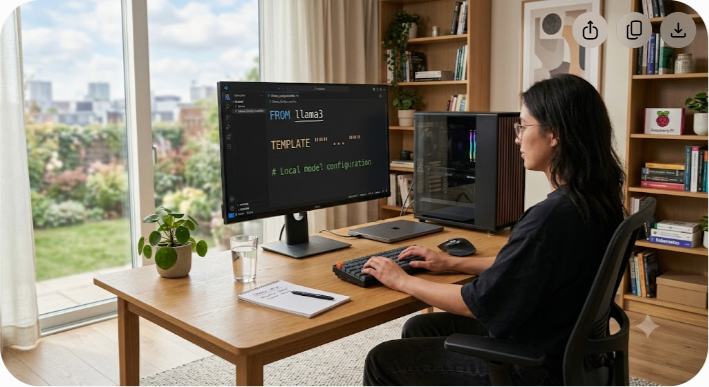
bash ollama show llama3.1
Customizing Models Using Ollama Modelfiles
Default model parameters do not always match application requirements. You may need custom system prompts, higher temperature settings, or extended context window sizes. Ollama handles these customizations declaratively using a Modelfile.
Step-by-Step Modelfile Build Process
- Create a plain text file named Modelfile in your project root.
- Define the base model using the FROM directive.
- Configure model execution parameters using PARAMETER key-value pairs.
- Define system-level constraints using the SYSTEM block.
Here is an example Modelfile tailored for generating structured JSON output for software engineering tasks:
dockerfile FROM llama3.1:8b
Adjust system temperature (lower = more deterministic)
PARAMETER temperature 0.2
Expand context window from 2048 to 8192 tokens
PARAMETER num_ctx 8192
Set stop tokens to prevent runaway generations
PARAMETER stop "<|eot_id|>" PARAMETER stop "User:"
Enforce a strict developer personality prompt
SYSTEM """ You are an expert senior backend engineer. You output valid, syntactically correct JSON code blocks only. Do not include introductory text, polite conversational fluff, or post-code explanations. """
To compile this configuration into a new, runnable model named tech-writer-json, execute:
bash ollama create tech-writer-json -f ./Modelfile
Test your custom model using the command line:
bash ollama run tech-writer-json "Extract user attributes from this log entry: User ID 9981 logged in from IP 192.168.1.1"
Containerized Deployment: Running Ollama with Docker and Compose
Deploying Ollama in production environments requires process isolation, environment repeatability, and robust automated restarts. Docker provides these guarantees while allowing complete access to host GPU hardware through container runtimes.
Host Prerequisites for GPU Acceleration
To pass NVIDIA GPUs through to Docker containers, install the NVIDIA Container Toolkit on your Linux host system:
bash curl -fsSL https://nvidia.github.io/libnvidia-container/gpgkey | sudo gpg --dearmor -o /usr/share/keyrings/nvidia-container-toolkit-keyring.gpg curl -s -L https://nvidia.github.io/libnvidia-container/experimental/ubuntu22.04/nvidia-container-toolkit.list | sed 's#deb [^ ]* #&[signed-by=/usr/share/keyrings/nvidia-container-toolkit-keyring.gpg] #' | sudo tee /etc/apt/sources.list.d/nvidia-container-toolkit.list
sudo apt-get update sudo apt-get install -y nvidia-container-toolkit sudo systemctl restart docker
Production Docker Compose Configuration
Create a docker-compose.yml file that provisions Ollama alongside Open WebUI—a feature-rich, web-based graphical user interface for interacting with local models.
yaml version: '3.8'
services: ollama: image: ollama/ollama:latest container_name: ollama_core restart: always ports:
- "11434:11434"
environment:
- OLLAMA_KEEP_ALIVE=24h
- OLLAMA_NUM_PARALLEL=4
volumes:
- ollama_storage:/root/.ollama
deploy: resources: reservations: devices:
- driver: nvidia
count: all capabilities: [gpu]
open-webui: image: ghcr.io/open-webui/open-webui:main container_name: ollama_ui restart: always ports:
- "3000:8080"
environment:
- OLLAMA_BASE_URL=http://ollama:11434
volumes:
- webui_storage:/app/backend/data
depends_on:
- ollama
volumes: ollama_storage: webui_storage:
Launch the container stack using detached mode:
bash docker compose up -d
Verify that the containers are healthy and running:
bash docker compose ps
You can now access the Ollama API locally at http://localhost:11434 and the web dashboard at http://localhost:3000.
Integrating Ollama into Your Application Stack
Connecting application logic to a local Ollama server is straightforward using native REST APIs, Python scripts, or TypeScript libraries.
Native REST API Examples
Ollama exposes two core generation endpoints: /api/generate (for raw text completion) and /api/chat (for structured, multi-turn conversational messages).
Generate Completion Endpoint (/api/generate)
bash curl http://localhost:11434/api/generate -d '{ "model": "llama3.1", "prompt": "Explain database indexing in two sentences.", "stream": false }'
Structured Chat Endpoint (/api/chat)
bash curl http://localhost:11434/api/chat -d '{ "model": "llama3.1", "messages": [ { "role": "system", "content": "You are a helpful assistant." }, { "role": "user", "content": "What is the capital of Japan?" } ], "stream": false }'
Python SDK Integration
Install the official Python client library:
bash pip install ollama
Execute a non-blocking streaming call to process responses in real time:
python import ollama
client = ollama.Client(host='http://localhost:11434')
response_stream = client.chat( model='llama3.1', messages=[ {'role': 'user', 'content': 'Write a Python function to compute Fibonacci numbers using dynamic programming.'} ], stream=True )
print("Response: ", end="") for chunk in response_stream: print(chunk['message']['content'], end="", flush=True) print()
LangChain and LlamaIndex Integration
If you are building RAG pipelines using enterprise frameworks like LangChain, swap out cloud LLM classes for Ollama bindings:
python from langchain_community.llms import Ollama from langchain_community.embeddings import OllamaEmbeddings
Initialize local LLM
llm = Ollama(base_url="http://localhost:11434", model="llama3.1")
Generate text
response = llm.invoke("Summarize the architectural differences between SQL and NoSQL.")
Initialize local embeddings for vector search
embeddings = OllamaEmbeddings(base_url="http://localhost:11434", model="nomic-embed-text") vector_query = embeddings.embed_query("Vector database indexing mechanisms")
Performance Tuning, Benchmarking, and Memory Optimization
To achieve production-grade generation speeds (over 40 tokens/second), default server configurations must be fine-tuned based on system specs.
Environment Variables for Performance Optimization
Configure these variables in systemd service overrides or Docker container environment parameters:
- OLLAMA_NUM_PARALLEL: Controls how many concurrent requests Ollama can execute simultaneously (default is 1). Setting this to 4 enables parallel request handling, though it divides available VRAM across active requests.
- OLLAMA_MAX_LOADED_MODELS: Defines the maximum number of models loaded into VRAM concurrently (default is 1). Increase this if your application routinely switches between text completion and embedding models.
- OLLAMA_KEEP_ALIVE: Controls how long a model remains loaded in VRAM after completing a request (default is 5m). Set to -1 to keep models permanently loaded, eliminating model loading cold-start delays.
- OLLAMA_FLASH_ATTENTION: Set to 1 to enable FlashAttention-2 algorithms on modern NVIDIA GPUs (Ampere architecture or newer), reducing attention calculation memory overhead by up to 40%.
Practical Benchmarking Commands
Measure local inference speed and prompt processing rates using standard system diagnostics:
bash ollama run llama3.1 --verbose "Write an essay on modern microservices architecture."
The --verbose output includes critical execution performance telemetry:
- eval rate: The generation speed in tokens per second (higher is better).
- prompt eval rate: The prefill ingestion speed in tokens per second (higher means faster handling of long context prompts).
- load duration: Time spent reading model weights from disk into VRAM.
Securing Your Self-Hosted Ollama Server
By default, Ollama listens exclusively on 127.0.0.1:11434 without requiring authentication headers. Binding Ollama to an external interface (0.0.0.0) without network protection leaves your server vulnerable to unauthorized API usage and potential compute resource hijacking.
Setting Up an Nginx Reverse Proxy with Basic Authentication
To expose Ollama securely across your enterprise team network, place an Nginx reverse proxy in front of the process to handle HTTPS termination and user authentication.
1. Generate Auth Credentials
Install apache2-utils and build an encrypted htpasswd credential database:
bash sudo apt-get install -y apache2-utils sudo htpasswd -c /etc/nginx/.htpasswd app_developer
2. Configure Nginx Proxy Block
Create a configuration file at /etc/nginx/sites-available/ollama:
nginx server { listen 80; server_name ollama.yourdomain.com;
Redirect all unencrypted HTTP requests to HTTPS
return 301 https://$host$request_uri; }
server { listen 443 ssl http2; server_name ollama.yourdomain.com;
ssl_certificate /etc/letsencrypt/live/ollama.yourdomain.com/fullchain.pem; ssl_certificate_key /etc/letsencrypt/live/ollama.yourdomain.com/privkey.pem;
location / { auth_basic "Restricted Access: Ollama Local Engine"; auth_basic_user_file /etc/nginx/.htpasswd;
proxy_pass http://127.0.0.1:11434; proxy_set_header Host $host; proxy_set_header X-Real-IP $remote_addr; proxy_set_header X-Forwarded-For $proxy_add_x_forwarded_for; proxy_set_header X-Forwarded-Proto $scheme;
Extended timeouts for long streaming generations
proxy_read_timeout 600s; proxy_connect_timeout 600s; proxy_send_timeout 600s;
Enable real-time token streaming responses
proxy_buffering off; proxy_cache off; } }
Enable the configuration link and reload Nginx:
bash sudo ln -s /etc/nginx/sites-available/ollama /etc/nginx/sites-enabled/ sudo nginx -t sudo systemctl reload nginx
Now, incoming client calls must provide HTTP Basic Authentication headers alongside SSL certificates to access the host's inference capacity.
Ollama vs. vLLM vs. TGI: Choosing the Right Local Inference Engine
Selecting the right self-hosted inference engine depends on your workload requirements. Ollama excels in developer workstation ergonomics and rapid prototyping, but high-throughput multi-user production applications may benefit from alternative runtimes.
| Architectural Metric | Ollama | vLLM | Text Generation Inference (TGI) |
|---|---|---|---|
| Primary Target Audience | Developer Workstations, RAG Apps | High-Throughput Production APIs | Enterprise Scale Cloud Deployments |
| Setup Complexity | Zero-Configuration (Single Binary) | Moderate (Python / CUDA Setup) | Moderate (Docker-Centric Stack) |
| Memory Management | Standard ggml / llama.cpp | PagedAttention Memory Allocation | Continuous Batching / FlashAttention |
| Concurrent Batching | Basic Request Queueing | State-of-the-art Dynamic Paged Batching | Advanced Dynamic Batching |
| Quantization Formats | GGUF (K-Quants, Q4_K_M) | AWQ, GPTQ, FP8, SqueezeLLM | EETQ, AWQ, GPTQ, BitsAndBytes |
| Native User Interface | CLI + WebUI Ecosystem | API Endpoint Only | API Endpoint Only |
| Multi-GPU Parallelism | Automatic Tensor Parallelism | Advanced Pipeline & Tensor Parallelism | Enterprise Tensor Parallelism |
The Takeaway
Use Ollama for local development, desktop workflows, internal tooling, and lightweight web apps. Transition to vLLM or TGI when building high-throughput SaaS APIs that serve hundreds of concurrent users across multi-GPU server clusters.
Troubleshooting Common Ollama Errors
Even well-configured local deployments run into occasional operational issues. Here is how to diagnose and resolve the three most common error modes.
1. Error: llama runner process exited unexpectedly
This error occurs when the underlying C++ inference binary crashes during execution. Common causes include:
- Out of Memory (OOM): The target model parameters exceed available physical VRAM + RAM capacity.
- Missing AVX2 CPU Instruction Support: Older CPUs lacking AVX2 instructions cannot execute quantized tensor math.
Resolution: Inspect the raw system process logs using journalctl -u ollama --no-pager -e on Linux, or check standard console outputs in Docker. Try loading a smaller model variant (e.g., switching from an 8B model to a 3B model like llama3.2:3b).
2. Slow Generation Rates (1–3 Tokens Per Second)
If token generation drops significantly, Ollama is unable to allocate model layers to your GPU and has fallen back to CPU execution.
Resolution: Check GPU layer offloading status by inspecting server logs. Verify that CUDA drivers are correctly initialized:
bash nvidia-smi
If using Docker containers, confirm that the nvidia-container-toolkit runtime is configured correctly and that the GPU resource allocation block is present in your Compose definition.
3. CORS Policy Error: Access-Control-Allow-Origin
Browser applications making direct JavaScript fetch requests to http://localhost:11434 will fail if cross-origin protections are enabled.
Resolution: Update Ollama environment settings to allow cross-origin requests from your frontend origin:
bash
Allow access from all origins (Development Setup)
export OLLAMA_ORIGINS="*"
If running Ollama via systemd, add the environment parameter to /etc/systemd/system/ollama.service.d/override.conf:
ini [Service] Environment="OLLAMA_ORIGINS=*"
Then reload systemd configurations and restart the service:
bash sudo systemctl daemon-reload sudo systemctl restart ollama
Building an End-to-End Local AI Stack
Self-hosting Ollama provides a private, zero-cost AI backend for your application development workflow. By removing third-party API dependencies, you retain full ownership over model inference, security parameters, and operating costs.
As your AI applications grow, selecting the right tools—from inference engines like Ollama to database infrastructure and prompt management platforms—is critical. If you are scaling a SaaS product, explore Saasbonus for detailed comparisons, hands-on software reviews, and technical guides that help software engineering teams build scalable, cost-efficient infrastructure.